Quick Start
Prerequisites
Before using CodeVista: AI Coding Assistant, make sure the following requirements are met:
Requirement | Details |
|---|---|
Visual Studio Code | Latest stable version recommended (Download) |
FPT Account | A valid FPT corporate account with access to CodeVista |
CodeVista Extension | Download the |
Network Access | Access to the CodeVista service and FPT Single Sign-On (SSO) authentication service |
Disk Space | Approximately 300 MB of free space |
This guide covers installing CodeVista manually from a VSIX package. If CodeVista is available through your organization's internal Marketplace, you can install it directly from the Extensions view.
Installation
Follow the steps below to install the CodeVista extension through Marketplace.
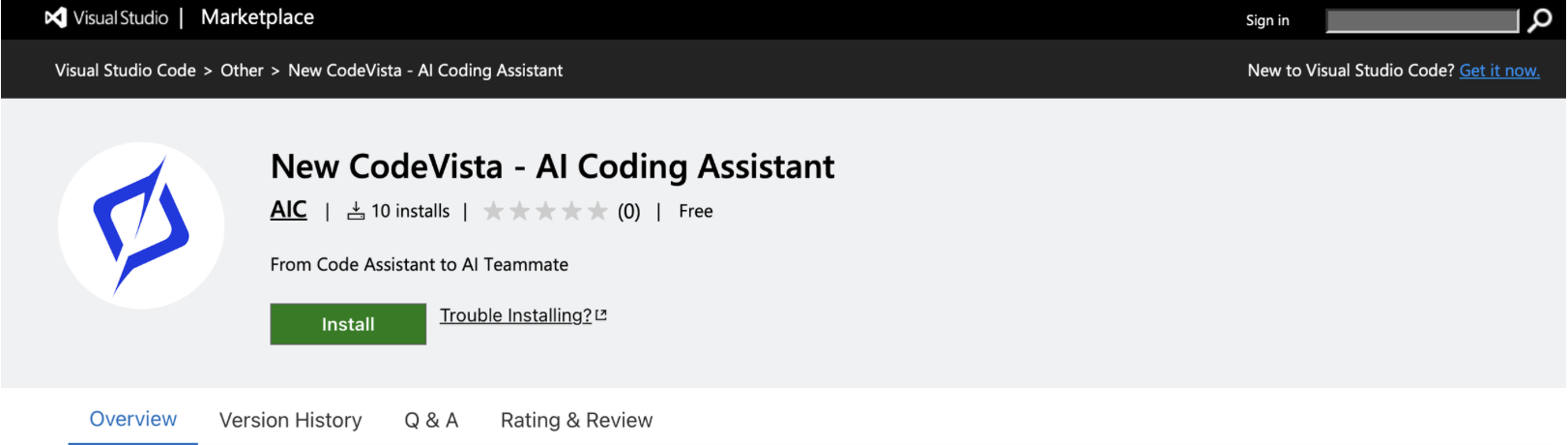
Step 1: Open CodeVista on Marketplace
Go to the CodeVista extension page on Visual Studio Marketplace through this link: New CodeVista - AI Coding Assistant - Visual Studio Marketplace and click Install.
Step 2: Install the extension in VS Code
Visual Studio Code will open automatically. Click Install to add the CodeVista extension.

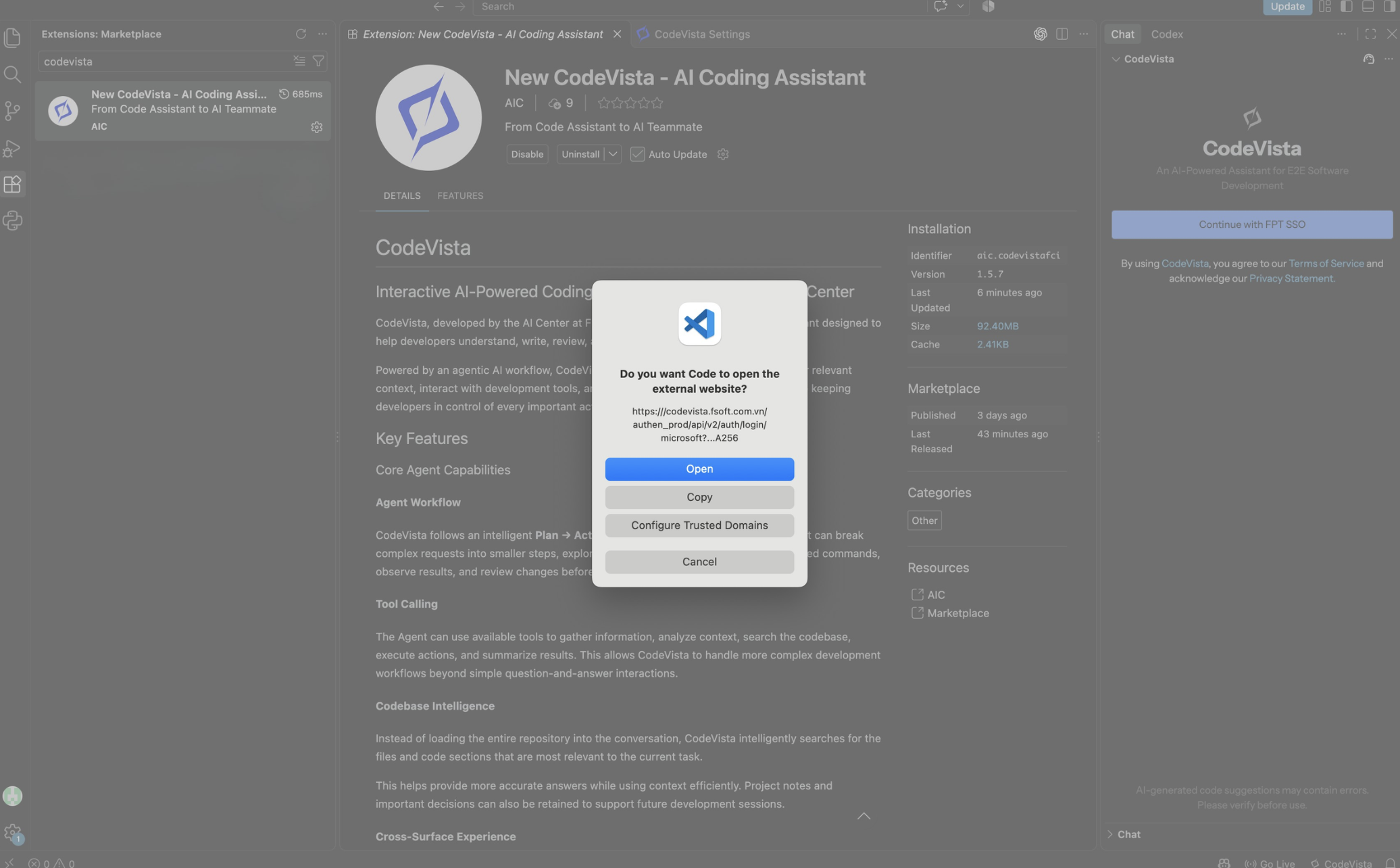
Step 3: Start FPT SSO login
Open CodeVista and click Continue with FPT SSO. When prompted to open the login page, click Open.
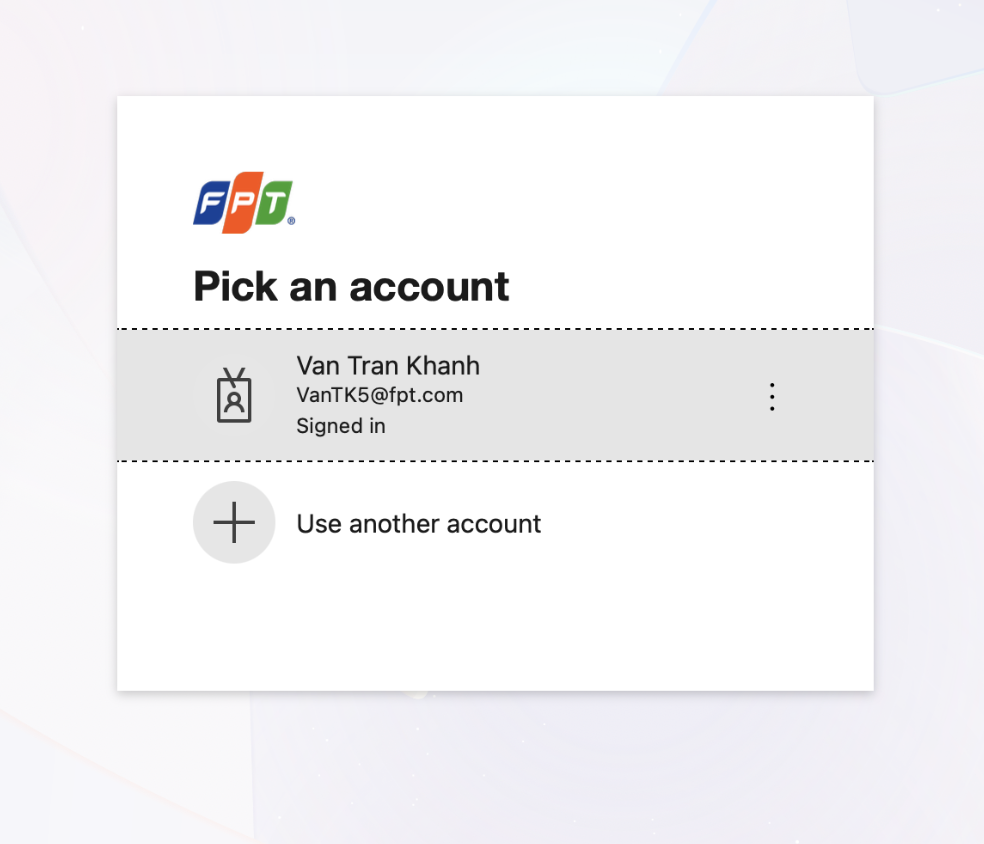
Step 4: Choose or Enter Your FPT Account
The browser opens microsoft sign-in page.
- Enter your FPT Account.
- Enter your password.
- Click Sign In.
If your browser has saved your FPT Account, you can select the saved account to sign in more quickly.
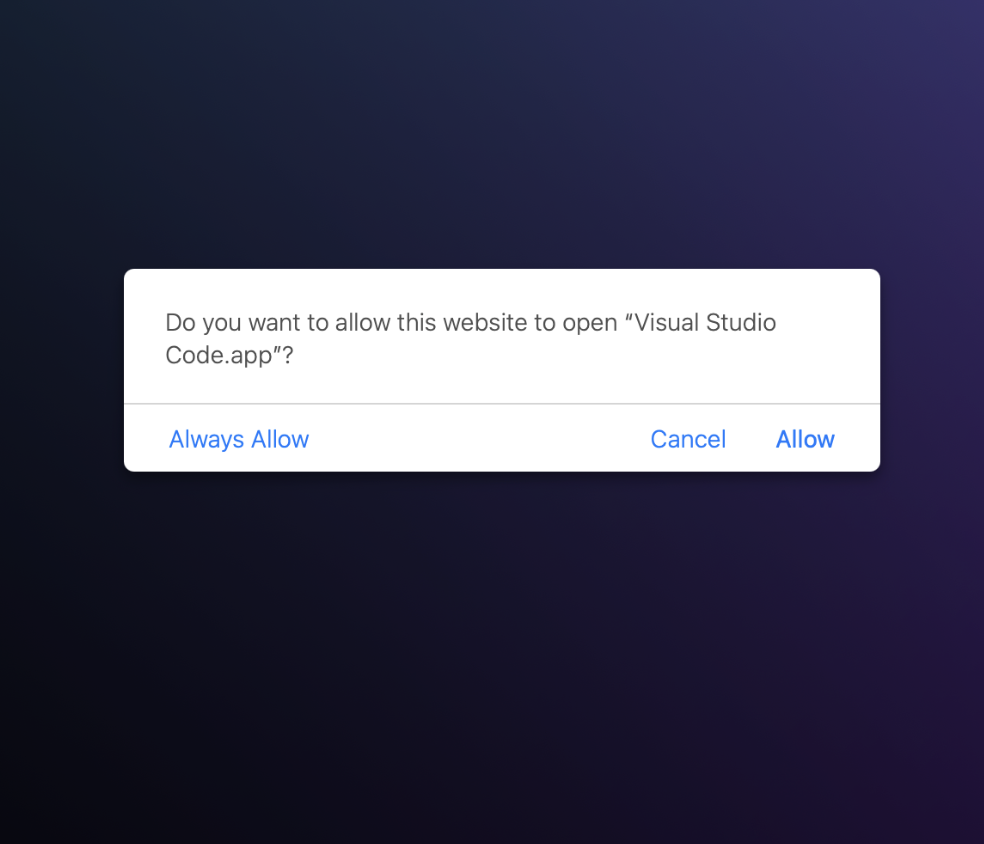
Step 5: Return to Visual Studio Code
After authentication, your browser will ask for permission to open Visual Studio Code. Click Allow.
Step 6: Complete the sign-in
Back in Visual Studio Code, click Open when CodeVista asks for permission to open the authentication URI.
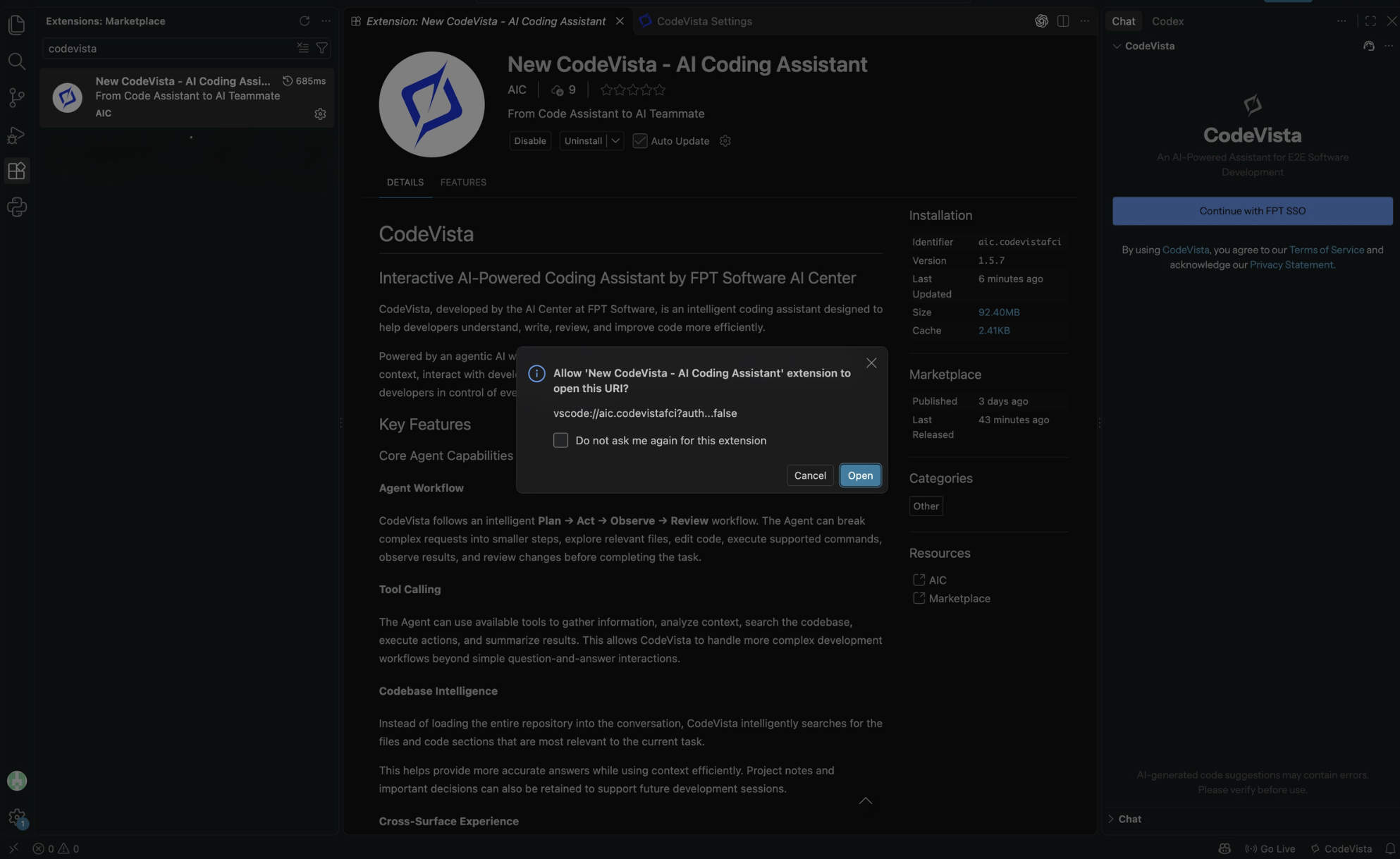
CodeVista is now installed and ready to use.
Visual Studio Code returns to focus, and the CodeVista panel displays your authenticated session.
If Visual Studio Code does not return to the foreground automatically, switch back to it manually. If the CodeVista workspace is displayed instead of the Continue with FPT SSO button, your sign-in was successful.
Quick Troubleshooting
Issue | Resolution |
|---|---|
CodeVista does not appear after installation | Reload Visual Studio Code |
Browser does not open for SSO | Check your browser and network connection |
SSO login fails | Verify your FPT account and CodeVista access |
VS Code does not reopen after login | Click Open IDE now or return to VS Code manually |
Returned to the Login screen | Reload VS Code and try signing in again |
Being redirected to Login panel | Refer to this KB for more details: How to fix login issues in CodeVista for VS Code |
Support & Resources
- CodeVista Website: https://codevista.fsoft.com.vn/
- CodeVista fanpage: FPT Place
- Publisher: FPT Software AI Center
For account access, installation issues, or bug reports, contact your CodeVista administrator or the CodeVista support team.