2 - Conversational & Chat Features
1. Overview
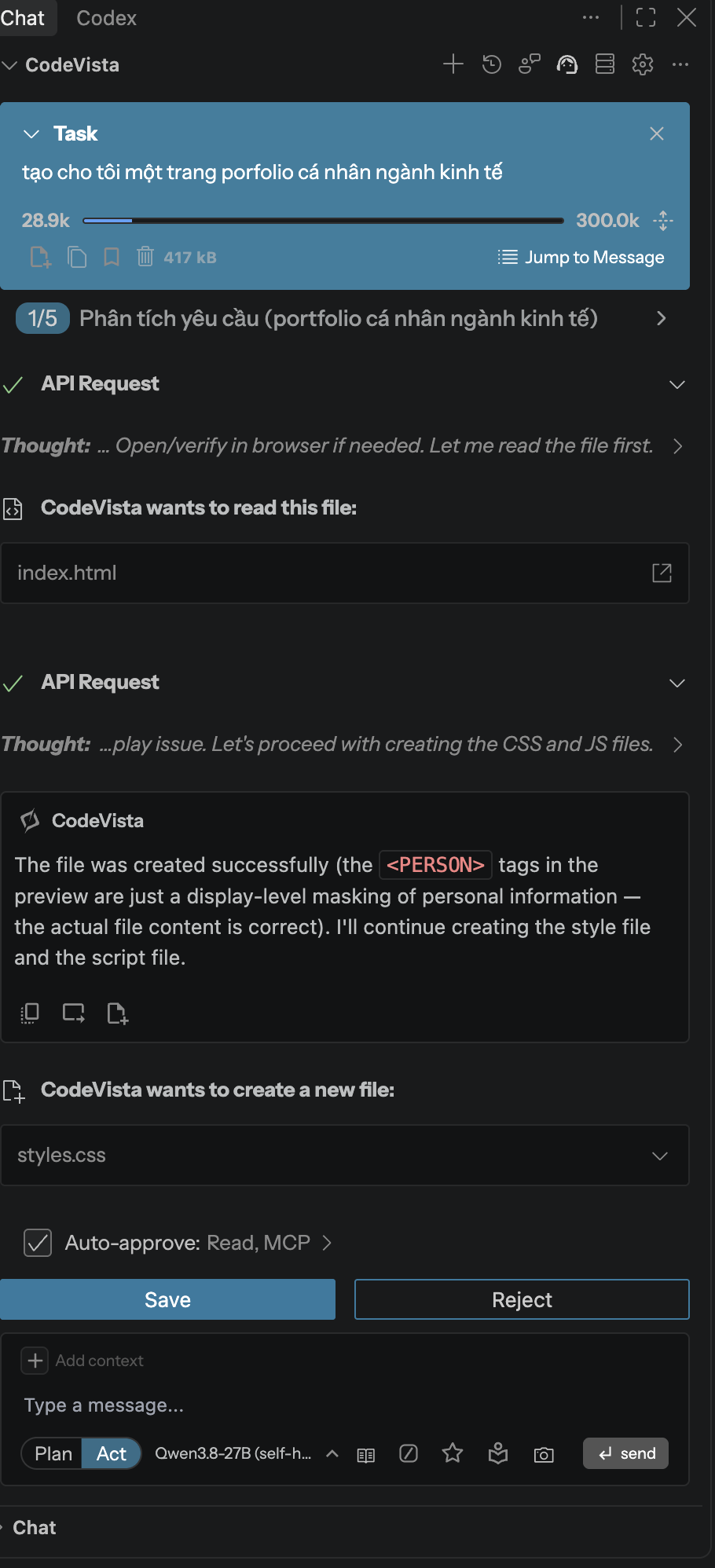
The Chat panel is the primary interaction point between developers and CodeVista. Developers can describe requirements using natural language, provide code or error messages, attach project context and receive contextual answers or code suggestions. CodeVista also provides tools for improving prompts, managing reusable prompts, organizing conversations and applying generated code directly to the project.
2. Key Capabilities
2.1. Chat Panel
The Chat Panel is the main place where you communicate with CodeVista. You can type questions or coding requests in natural language just like chatting with another developer. You can also include code snippets, error messages, or project information. CodeVista will analyze your request and return an explanation, code suggestion, solution, or recommended next action.
You can use the Chat Panel to:
- Ask questions about your code.
- Explain unfamiliar code.
- Fix errors.
- Generate new code.
- Refactor existing code.
- Generate unit tests.
- Review code.
- Ask about project structure.
- Paste error messages for debugging.
2.2. Prompt Library
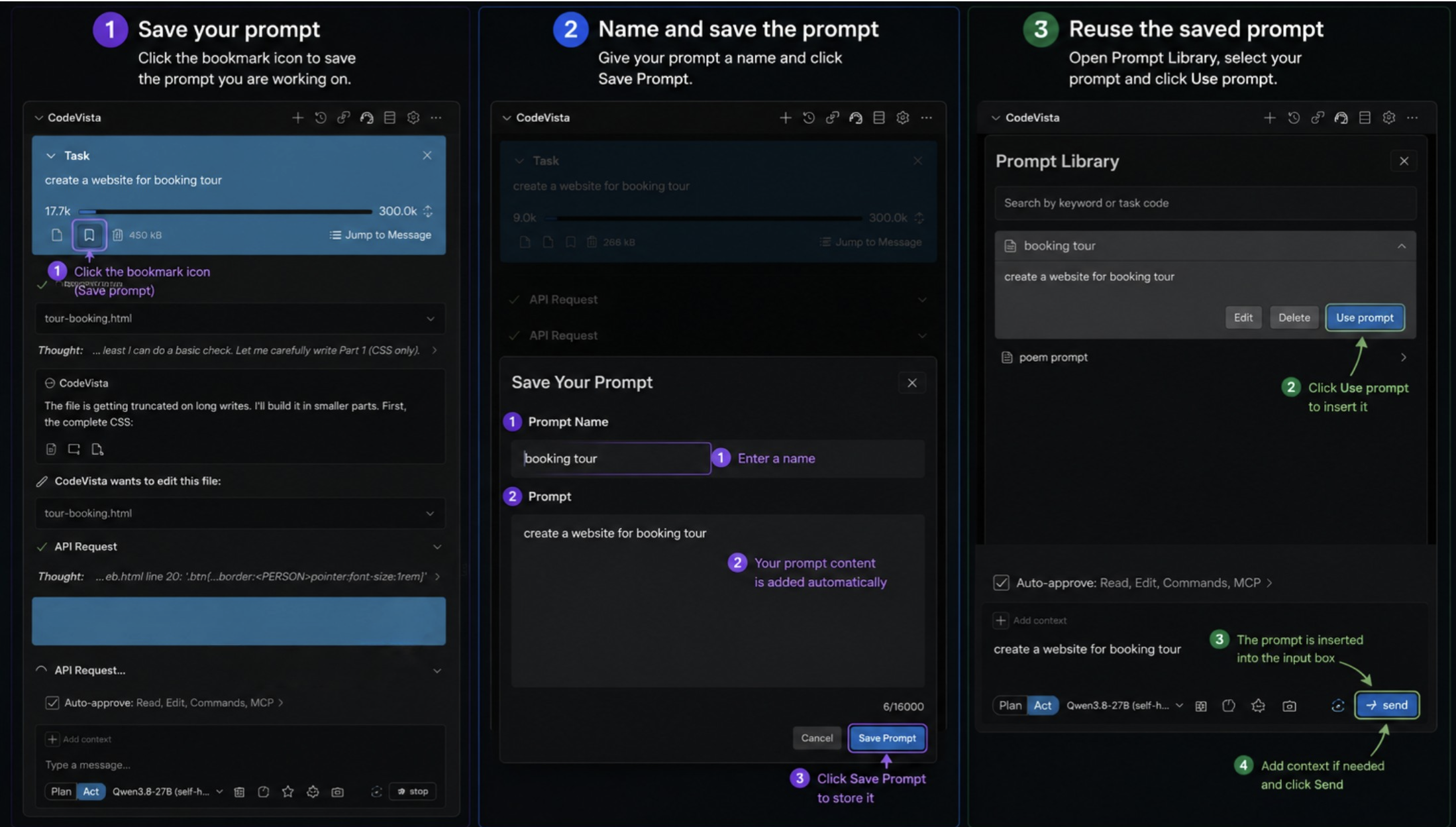
The Prompt Library allows you to save prompts that you use frequently. Saved prompts are stored in Prompt Library so you do not need to write the same instruction again every time. This is useful for repetitive development tasks such as code reviews, unit-test generation, documentation, or refactoring.
How to Save and Reuse Prompts
- Save your prompt: Click the Save Prompt bookmark icon on a prompt you want to reuse later.
- Name and save it: Give the prompt a clear name, review the content, and click Save Prompt.
- Reuse the prompt: Open Prompt Library, find your saved prompt, and click Use prompt.
- Send it again: The prompt will be added to the chat input. Add context if needed, then click Send.
2.3. Prompt Improvement
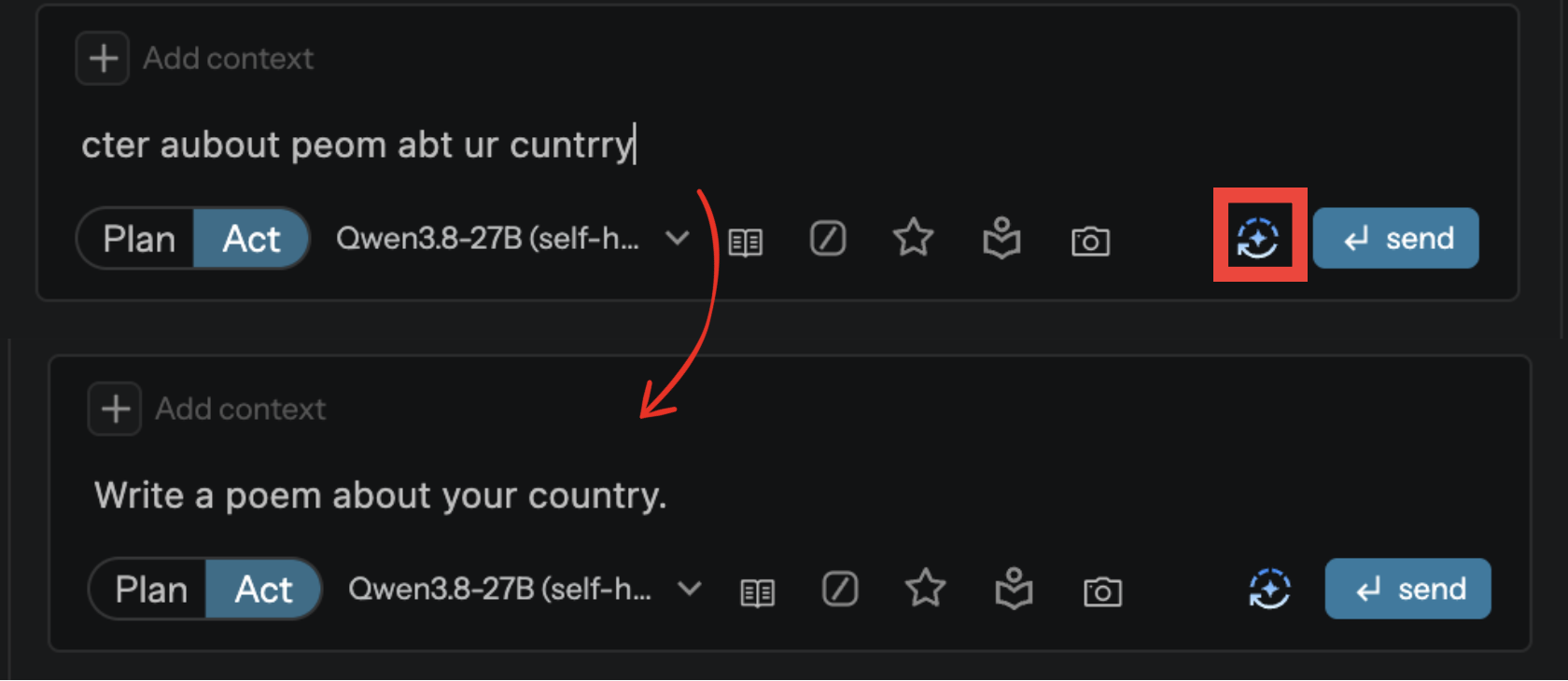
Prompt Improvement helps users turn short or unclear prompts into clearer and more effective instructions. It improves structure, adds useful details and clarifies the expected task before sending. Users can review and edit the improved prompt, helping CodeVista better understand their intent and provide more accurate, relevant responses.
2.4. Suggested Next Prompts
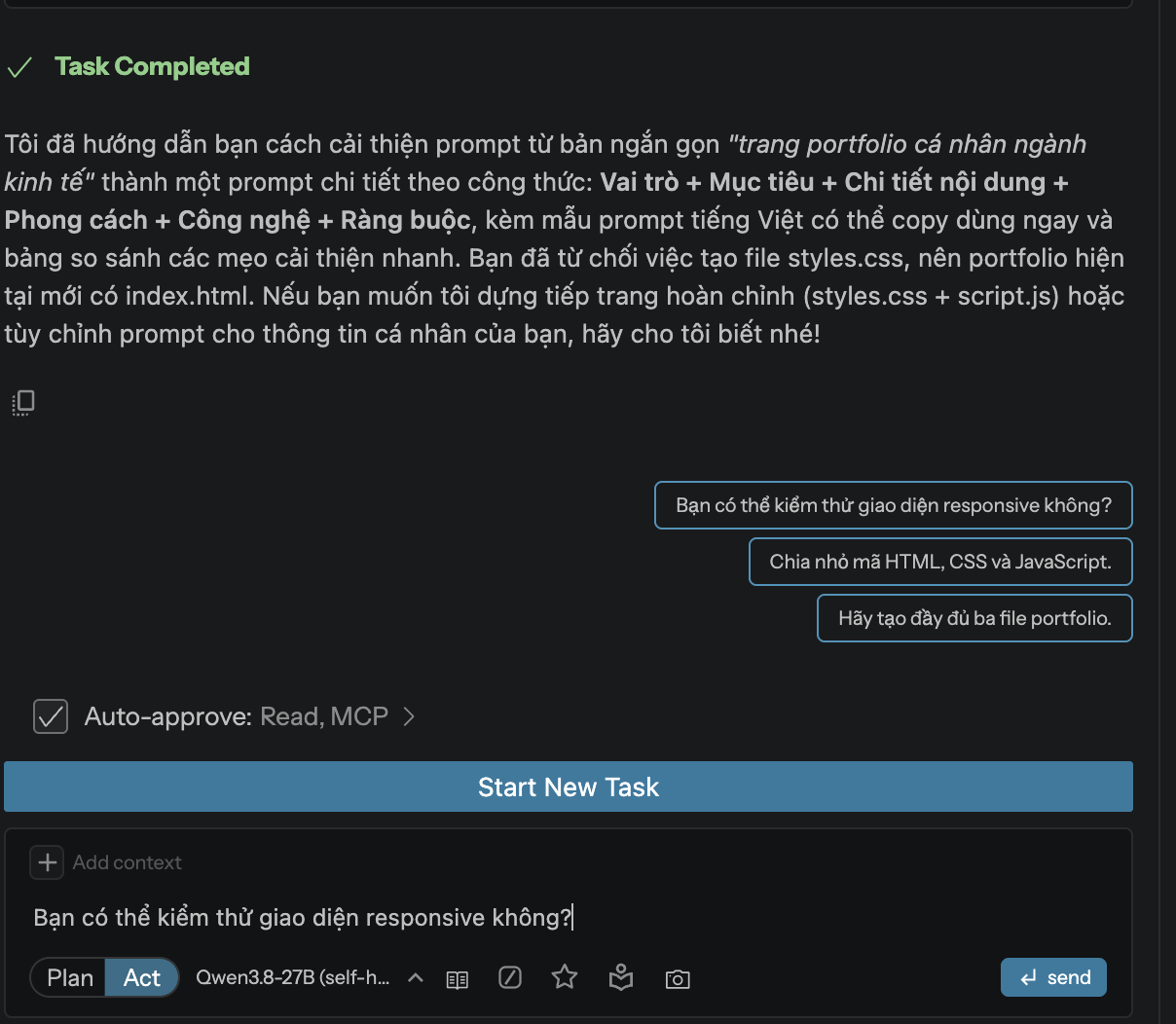
After CodeVista answers your request, it can provide up to three Suggested Next Prompts. These are possible follow-up actions based on your current conversation. You can select one of them instead of typing the next request manually.
2.5. Add Context (@ and +)
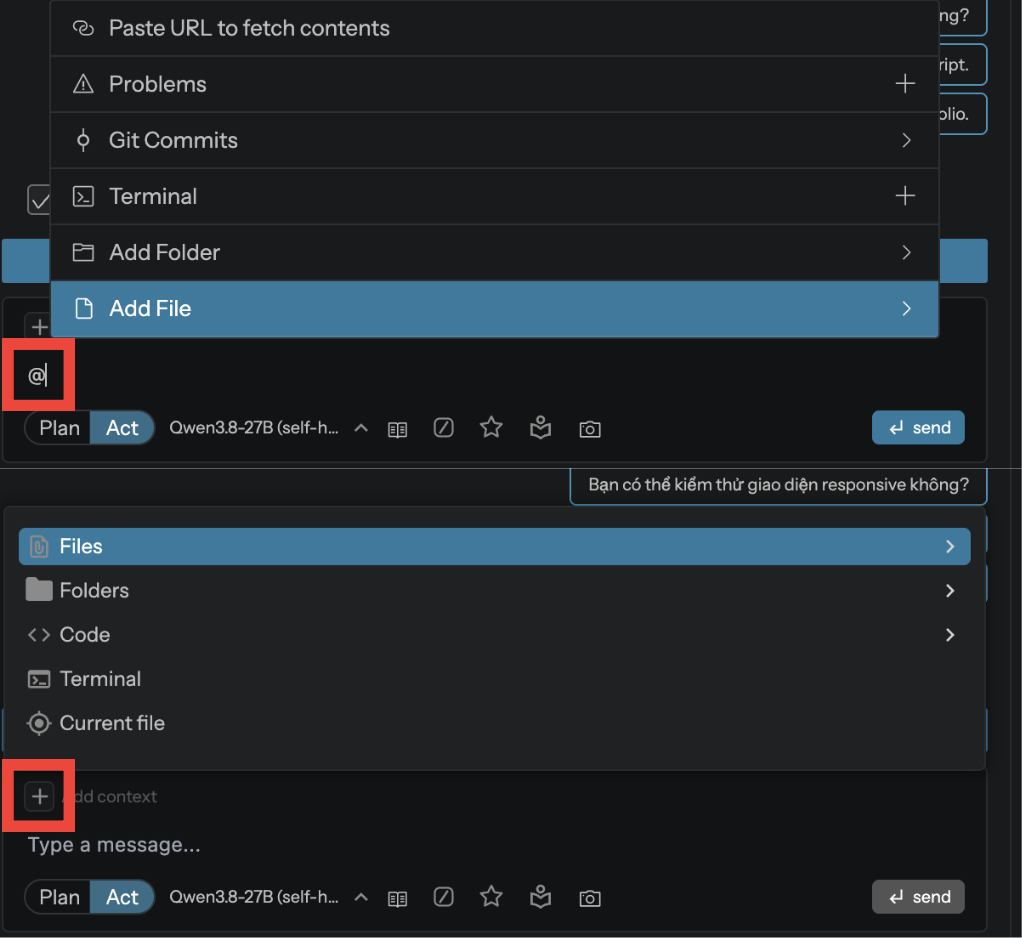
Add Context allows you to tell CodeVista exactly which project information it should consider when answering your request. You can add specific files, folders, or code snippets using options such as @ and +. Providing the correct context helps CodeVista understand your real project instead of making assumptions.
2.6. Response Actions
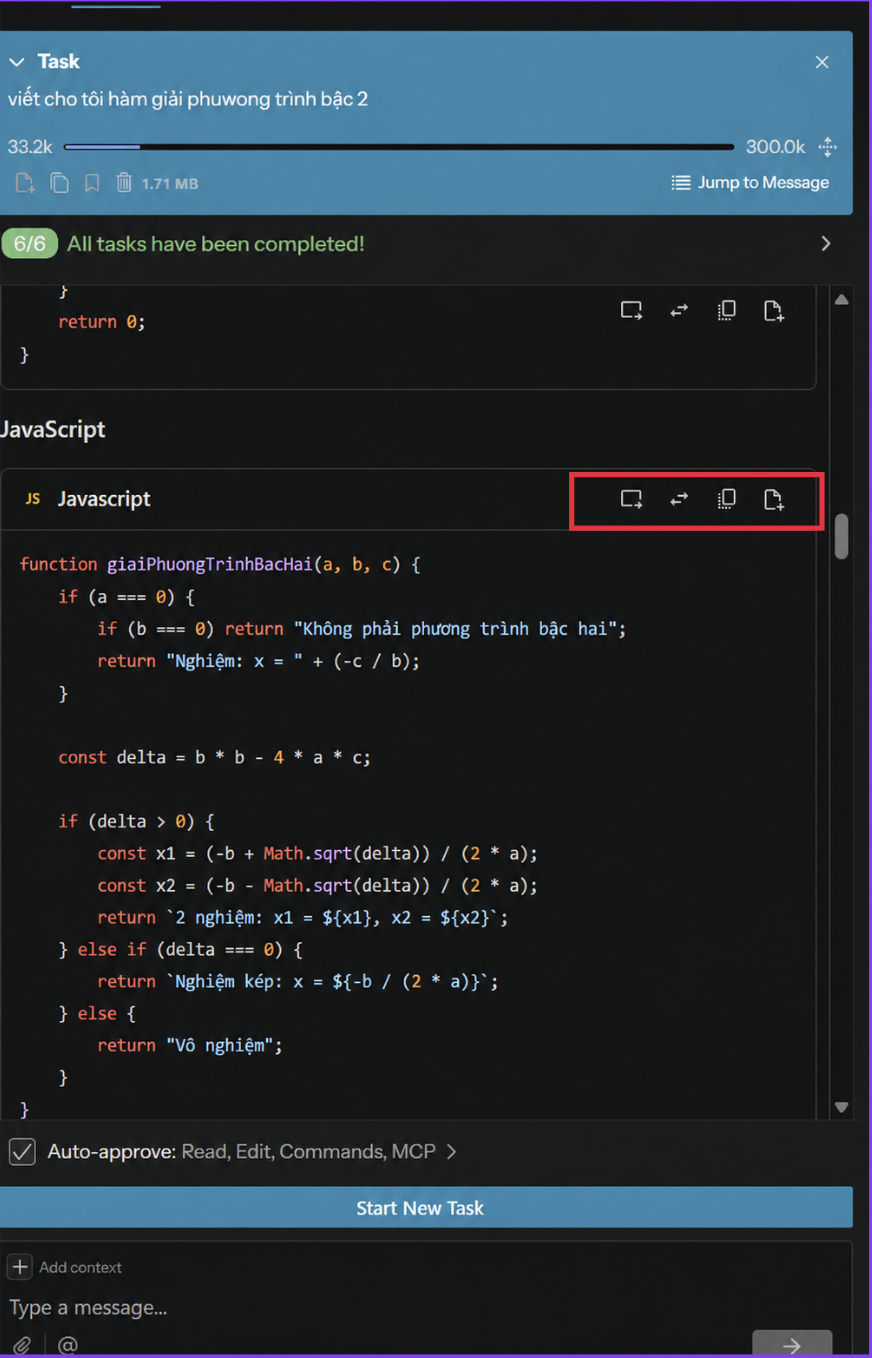
After CodeVista generates code, you do not always need to copy and paste it manually. Response Actions allow you to directly use the generated content in your project.
Available actions include:
- Insert at Cursor: Use this when you want to add generated code at your current cursor position.
- Replace Selected Code: Use this when you want CodeVista to replace existing code.
- Copy to Clipboard: Use this when you want to use the generated content somewhere else.
- Insert into New File: Use this when CodeVista generates a complete file.
2.7. Conversation History
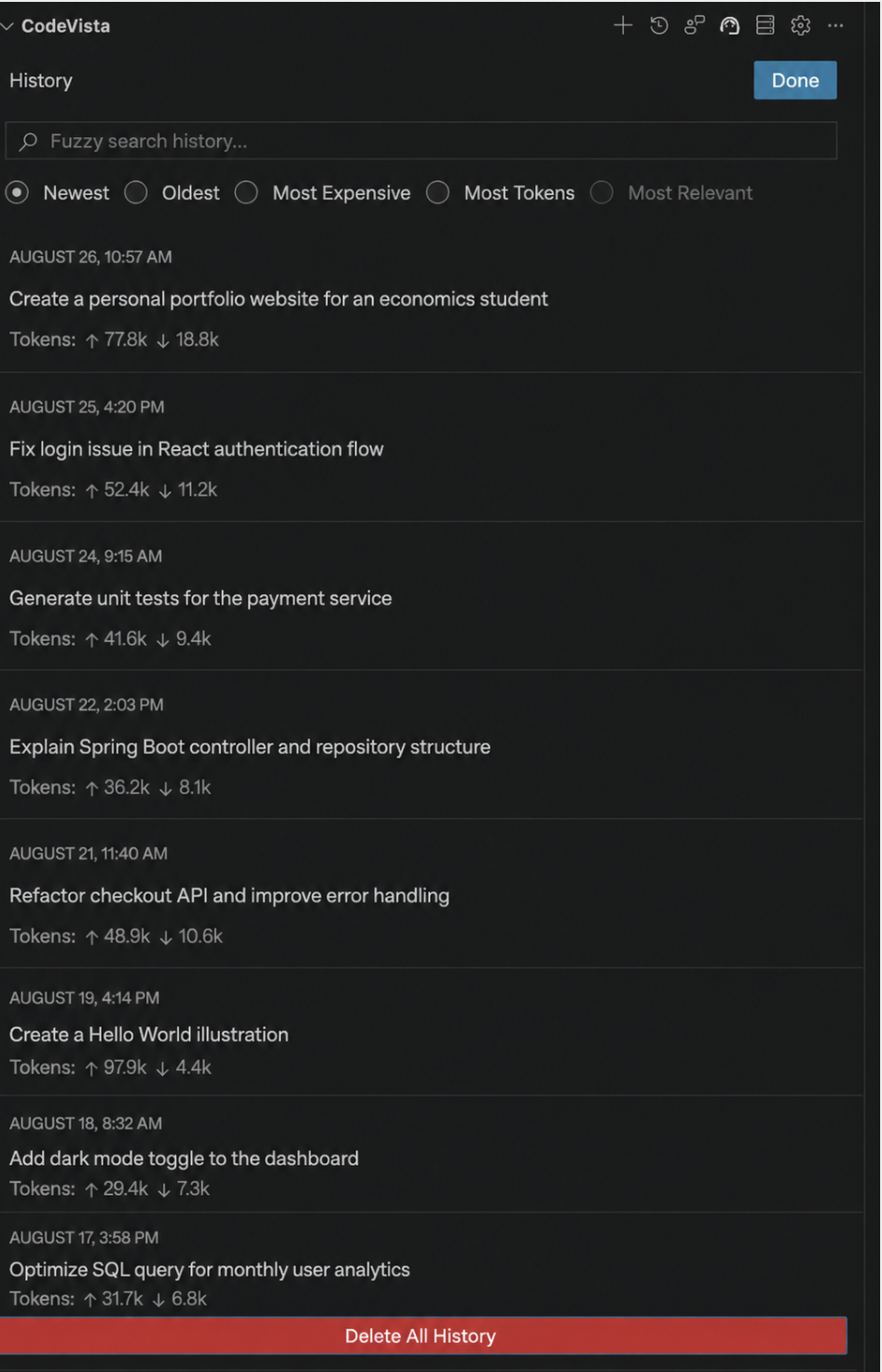
Conversation History stores previous CodeVista conversations inside your workspace. You can reopen old conversations to continue previous tasks, review earlier explanations, or find solutions you used before. This is useful when development work continues across several sessions.
Providing the right context helps CodeVista generate responses that are more relevant to the current project instead of producing generic answers.