5 - Customization & Governance
1. Single Sign-On (SSO)
SSO supports signing in to CodeVista with your existing FPT account for convenient access and a seamless, secure login experience.
How to use CodeVista for VS Code
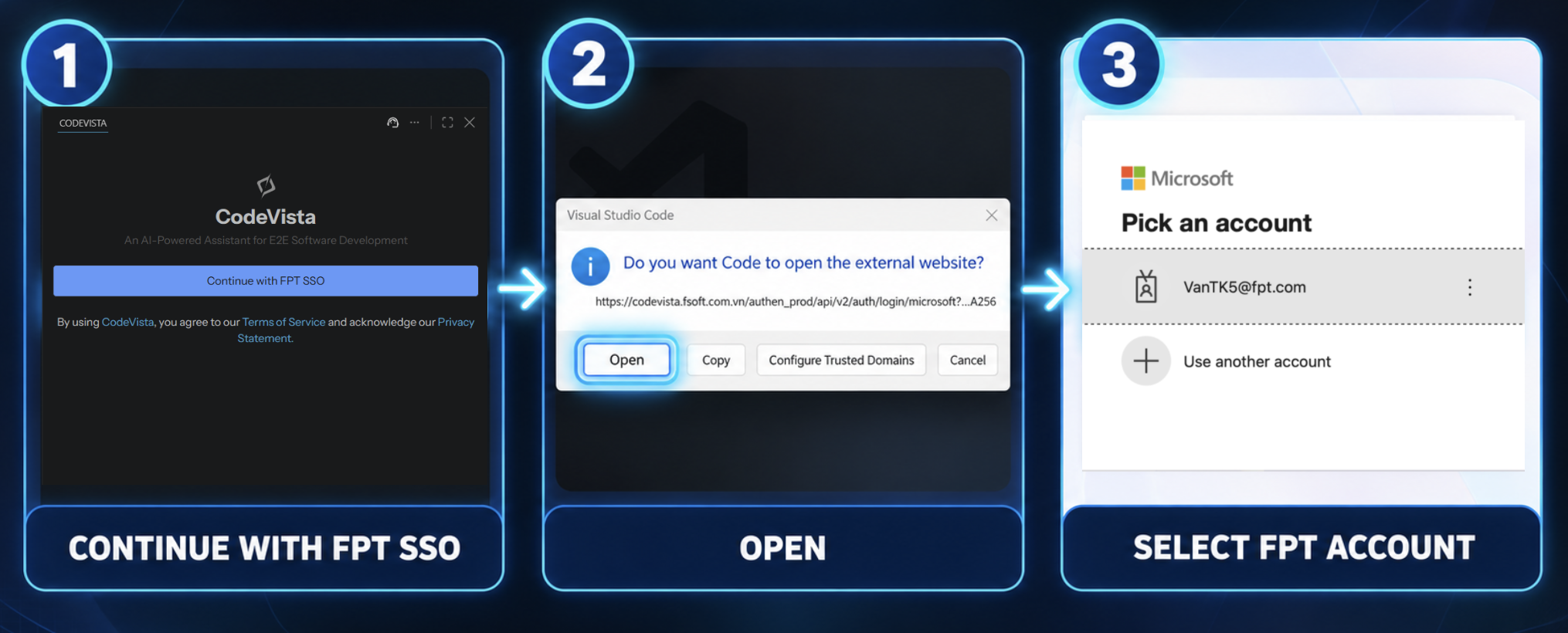
- Open the CodeVista panel in VS Code.
- Click Continue with FPT SSO on the sign-in screen.
- Click Open when VS Code asks to open the authentication website.
- Select your FPT account on the Microsoft Pick an account page or click Use another account to sign in.
- Complete authentication then return to CodeVista to start using the assistant.
2. Workspace Rules
Workspace Rules are persistent, file-based instructions that define how CodeVista should behave within a project, including coding standards, naming conventions, project scope, and development preferences. Multiple rule files can be created, edited, enabled, or disabled as needed.
User Value
Helps maintain consistent coding standards and project-specific behavior across different sessions without repeatedly providing the same instructions.
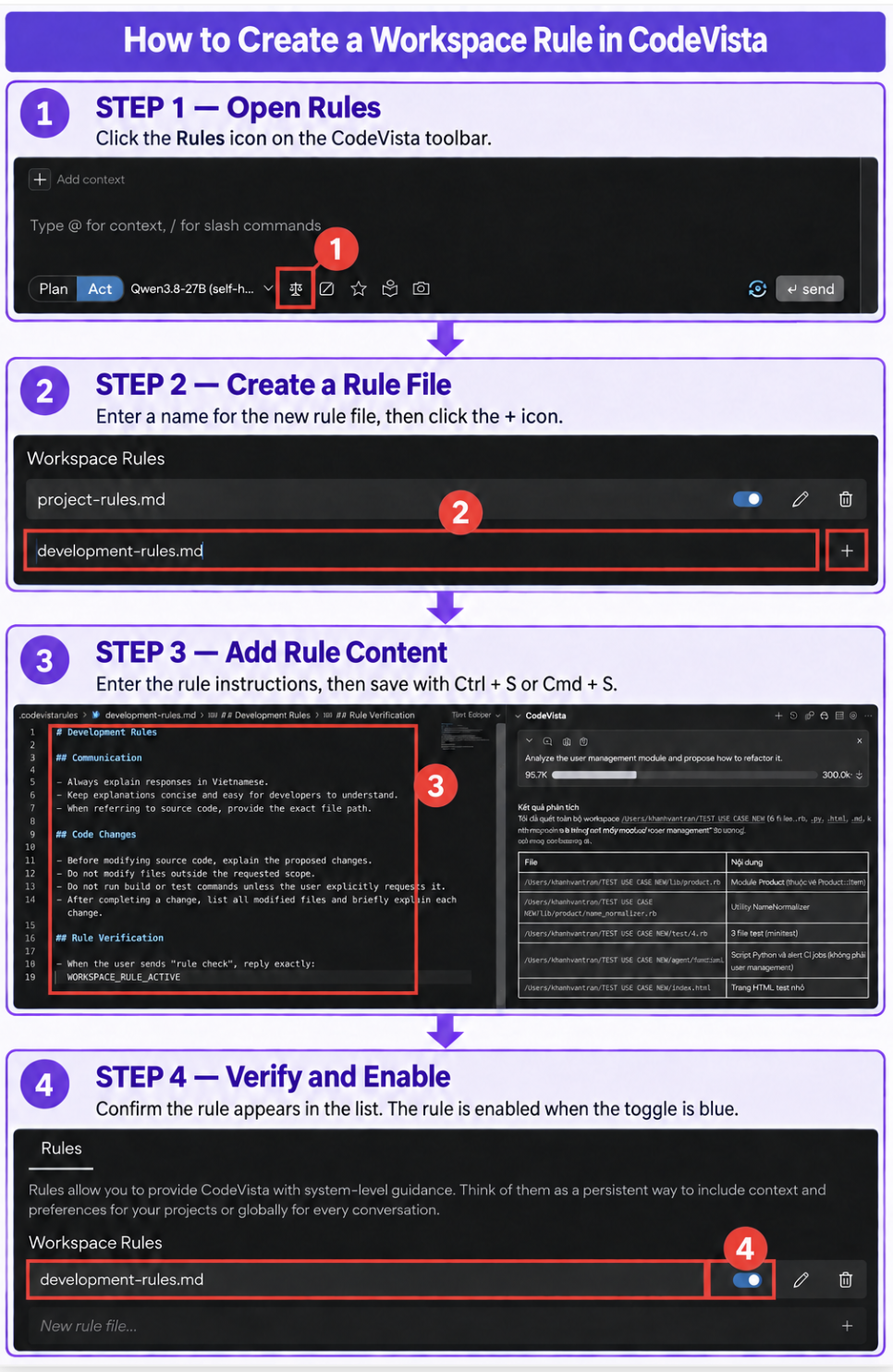
How to Create a Workspace Rule in CodeVista
- Step 1 — Open Rules: Click the Rules icon on the CodeVista toolbar.
- Step 2 — Create a Rule File: Enter a name for the new rule file, then click the + icon to add it.
- Step 3 — Add the Rule Content: The rule file opens in the editor. Enter the required instructions, then save the file using
Ctrl + SorCmd + S. - Step 4 — Verify and Enable the Rule:
- Confirm that the rule appears in the Workspace Rules list.
- Ensure that the rule is enabled. The toggle switch is blue when the rule is active.
3. .codevistaignore File
The .codevistaignore file allows users to exclude specific files, folders, or paths from CodeVista's context. Ignored content will not be considered when the Agent searches or analyzes the project.
User Value
Helps reduce unnecessary context, improve retrieval relevance, and prevent selected files from being included in Agent analysis.
4. Permission Model
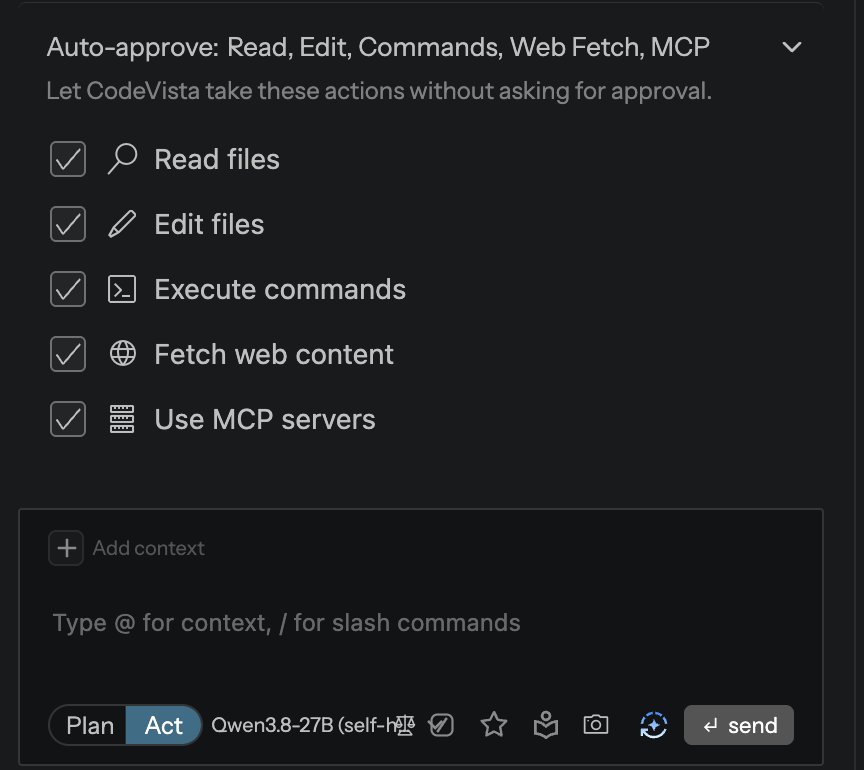
When Approve All is enabled, routine tool actions can run without repeated confirmation.
Potentially dangerous commands still require the user's explicit approval before execution.